Spotify User Integration
In the Users section you have the option to add Spotify users. You do not need this for any manual imports, you only need it when you want to do a bit more with Spotify accounts.
Features
When you have a connected user you can:
- Easily add albums or playlists saved by that user
- Import user-specific or private playlists
- Automatically sync most recently listened songs
- Sync liked songs automatically
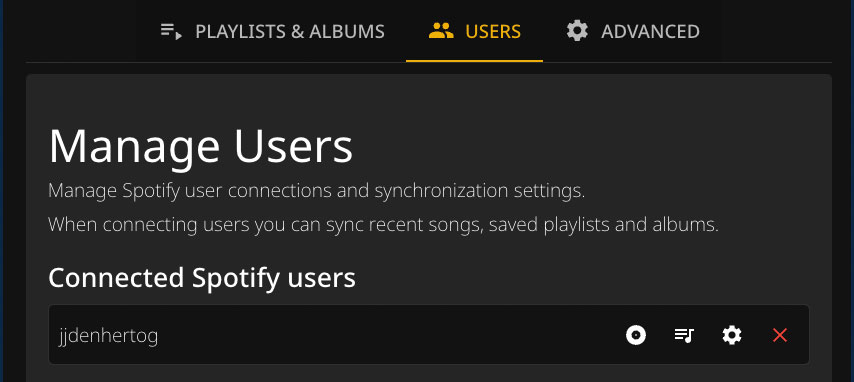
Adding Users
- Navigate to the Users section in the app
- Click “Connect Spotify Account”
- Log in to your Spotify account when prompted
- Authorize the app to access your data
Multiple Users
You can add multiple Spotify users to sync playlists from different accounts.
Since 2026 Spotify limits you to 5 connected users per app. See App Configuration.
To add multiple users, you need to sign out of Spotify before attempting to add the extra user. Alternatively, perform this step in an incognito/private browser window.
Security
When you login to your Spotify account, the tokens are stored in spotify.json in your storage folder (/app/config).
Encryption
Sensitive data is encrypted using an encryption key that you provide:
-e ENCRYPTION_KEY=your_encryption_key_here
Generate a secure key using:
openssl rand -hex 32
Best Practices
- Properly protect the folder that you are mounting to this app
- Use a strong, unique encryption key
- Keep your encryption key secret and backed up