Lidarr Integration
When you have configured the Lidarr integration, you can automatically send missing albums to Lidarr for download.
Lidarr synchronizes albums, not songs. A playlist can easily contain songs from 50+ albums. This feature will cause many albums to be downloaded by Lidarr.
Prerequisites
- A running Lidarr instance
- Lidarr API Key (Settings → General → Security → API Key)
Configuration
Step 1: Add Environment Variable
-e LIDARR_API_KEY=YOUR_LIDARR_API_KEY
Step 2: Configure in App
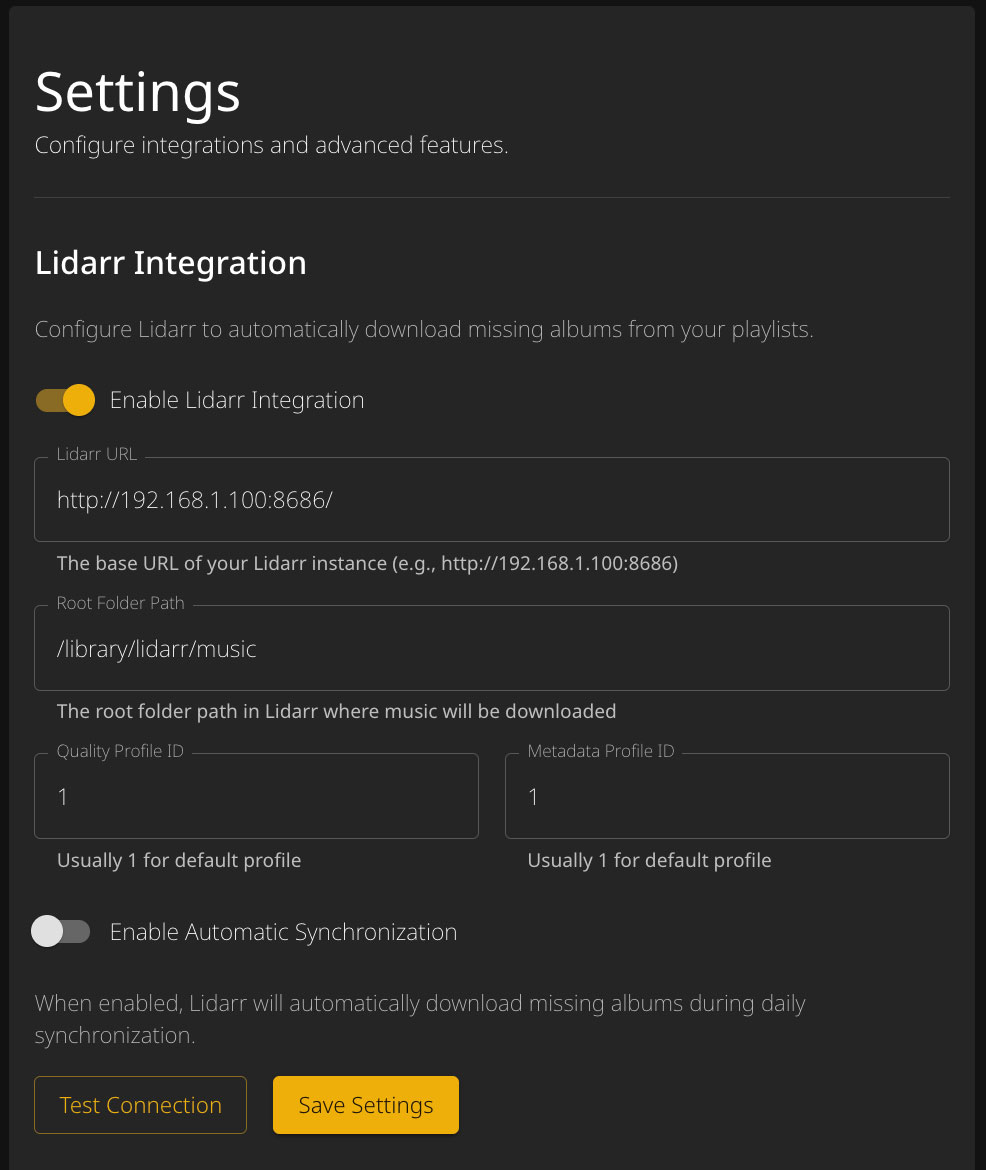
Navigate to Advanced → Lidarr Integration and configure:
| Setting | Description |
|---|---|
| Lidarr URL | Base URL of your Lidarr instance (e.g., http://192.168.1.100:8686) |
| Root Folder Path | Where Lidarr should download music (must match a root folder in Lidarr) |
| Quality Profile ID | Usually 1 for the default quality profile |
| Metadata Profile ID | Usually 1 for the default metadata profile |
| Automatic sync | Enable automatic synchronization with Lidarr |
Usage
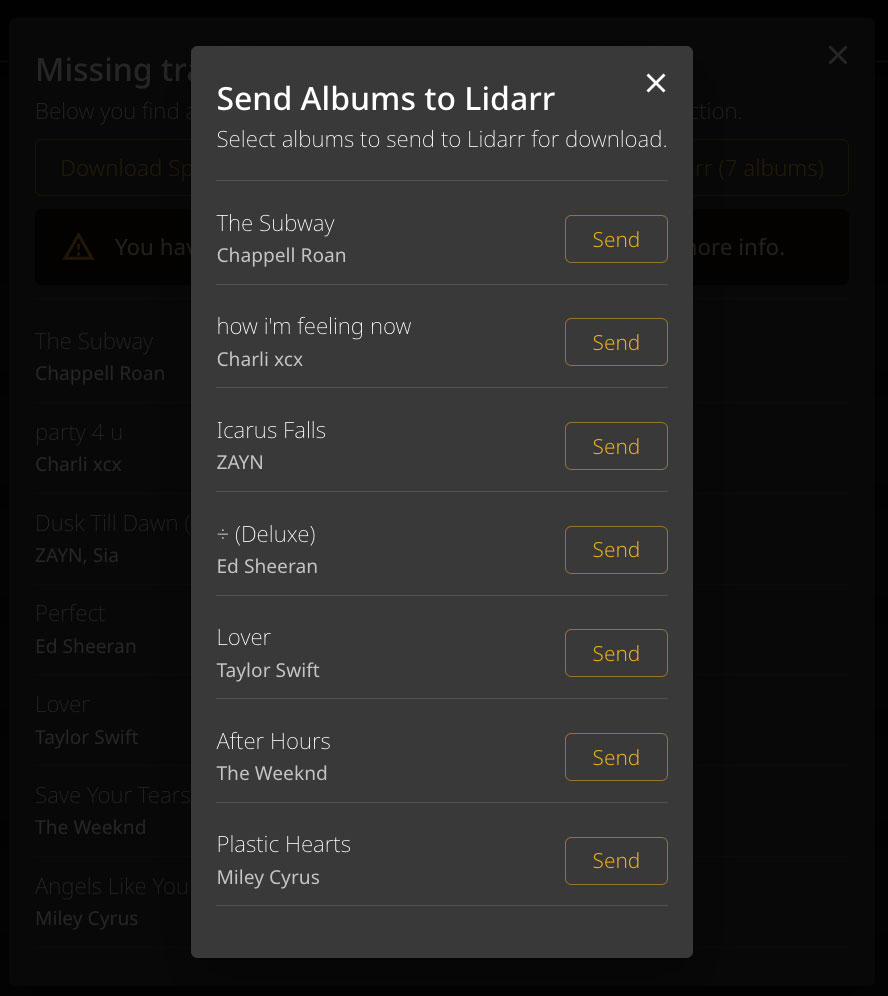
Sending Albums Manually
When viewing missing tracks for a playlist, you’ll see a “Send to Lidarr” button that shows how many unique albums are missing.
Automatic Sync
When automatic sync is enabled, missing albums are sent to Lidarr during the daily synchronization process.
Trigger manually via:
http://[IP-ADDRESS]:9030/api/sync/lidarr
Finding Profile IDs
To find your Quality and Metadata Profile IDs:
- Open Lidarr
- Go to Settings → Profiles
- The ID is visible in the URL when editing a profile, or use the Lidarr API