Track Matching
This app tries to match songs as best as possible using different approaches. When a song can’t be matched even though you have it, it’s best to raise an issue so we can dive into it.
How Matching Works
The app uses multiple search strategies to find your songs in Plex:
- Artist and track name matching
- Album cross-referencing
- Fuzzy matching for variations (remixes, live versions)
- Multiple search approaches with customizable settings
When a song is found but isn’t a perfect match, you will see a warning indicator.
Analyzing Unmatched Tracks
When a song is not getting matched, you can analyze the track in the Music Search Configuration (in the Advanced tab).
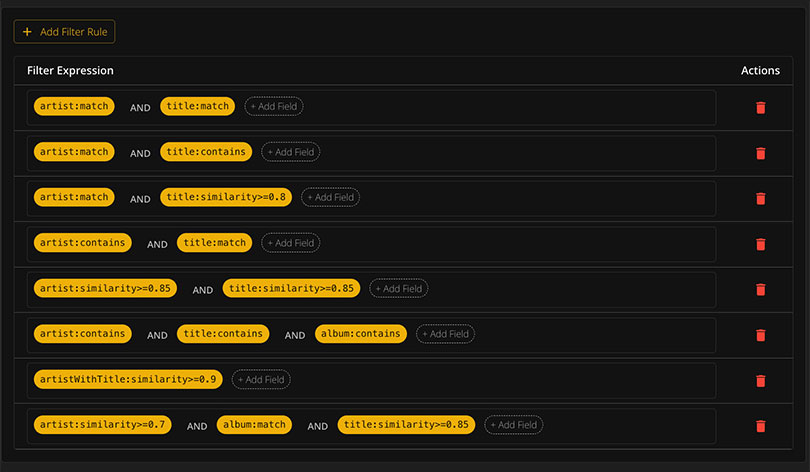
This shows you exactly what is going on and helps identify why a track couldn’t be found.
Missing Songs
You can view all songs that cannot be matched and:
- Download as a text file containing all song links
- Match them with Tidal (requires Tidal credentials)
- Send missing albums to Lidarr for automatic download
- Search via SLSKD for P2P downloads
Spotify API Limitations
Due to changes to Spotify’s Web API (November 2024), many public Spotify-owned playlists can no longer be accessed through the official API. To work around these limitations, this project leverages SpotifyScraper for extracting playlist data.
Limitations
| Limitation | Details |
|---|---|
| Rate limiting | Large numbers of requests may be throttled |
Full playlists are fetched through SpotifyScraper (max_tracks: null), and through the official API with pagination for user playlists and manual imports (/import/[id] with ?full=1).
Performance & Caching
Most API requests to Plex and Tidal take time, so data is cached extensively.
How Caching Works
- When a song is matched once, it will not try to match it again
- When reloading an existing playlist, only missing songs are searched
- Requests are made in sets of 5 tracks at a time
- You can interrupt the process - matched songs are saved immediately
Removing Cache
All cached data is stored in track_links.json in the storage folder.
Options:
- Delete
track_links.jsonto remove all cached matches - Click the refresh icon on the playlist screen to reload ignoring cache

Large Playlists
For extremely large playlists (200+ songs), you’re prompted to use the fast search option. This scans your library using only the first search approach for better performance.
Any matched songs are cached, so there is little harm to interrupting the process. Matched songs will be skipped on the next sync.